Staff mode
In the EnaFeedback mobile app, field staff check in and out, log cleaning and control records, answer reminders, and see their working hours and messages.
- Mobile app· staff
This article was verified with an older release. Screen names or steps may differ in the current version.
Staff mode is the EnaFeedback mobile app mode that field staff sign in to with their personnel code. A cleaner, inspector or shift worker scans the location they work at and logs check-in and check-out, cleaning records and control records from the phone. In the same mode they send feedback about their workplace, answer staff surveys, read messages from their managers and see their monthly working hours. It is the app counterpart of the staff panel (web); NFC-verified records are only possible in the mobile app.
Required role / permission and version
- An active personnel record and personnel code. For sign-in, see Setup and organizations.
- The staff member's role and the modules open at the location decide which cards appear (attendance, cleaning record, control record).
- Check-out reminders and My working hours: EnaFeedback 2.1.112 and EnaFeedback Mobile 1.7.0 or later.
- Message center: EnaFeedback 2.2.0 and EnaFeedback Mobile 1.9.0 or later.
Home
- Header: the organization name, the Message center bell, your avatar with a role badge and the location row. Before you scan a location, the row says "Scan a QR code or an NFC tag."
- Quick actions: records open at the location: Check-in and check-out ("Not checked in" or "Checked in since …"), Cleaning record ("Ready to record") and Control record (with the number of checklist items). When a survey is open, Surveys appears too. Tapping a card opens that card on the Actions page.
- Personnel pages: content pages the organization publishes for staff.
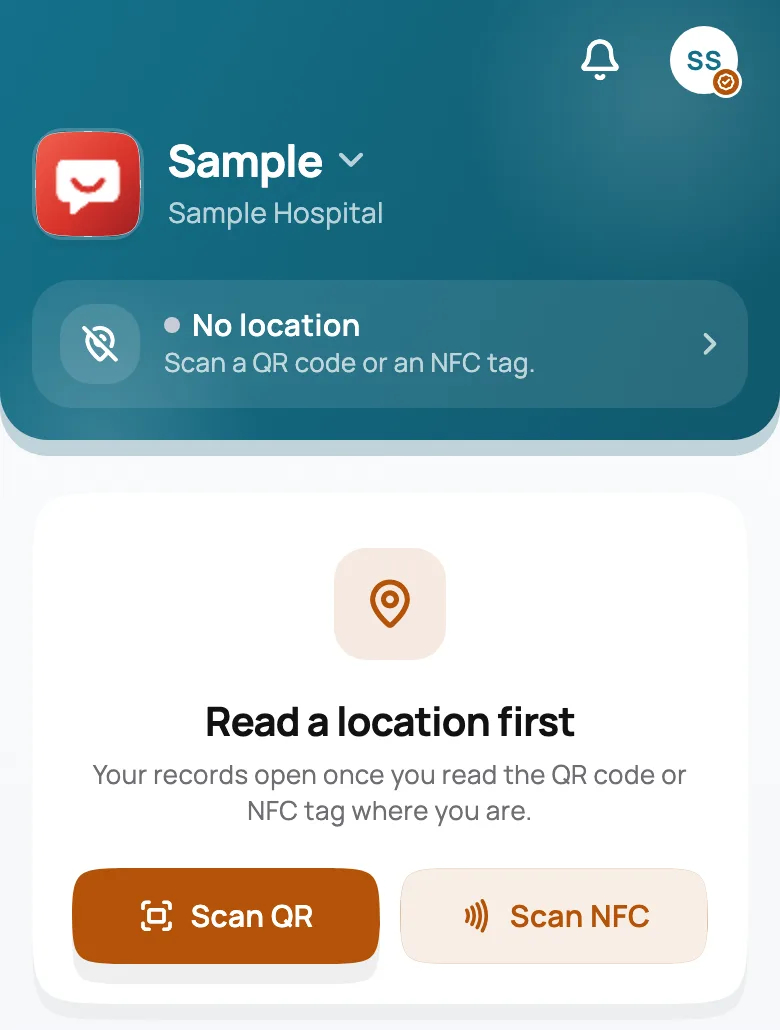
Staff mode home before a location is scanned (sample organization and test data)
The bottom bar has the Home, Actions, Report and Settings tabs, with the Location button in the center.
Actions: attendance, cleaning and control records
Location session
Scan the QR code or NFC tag
A location session opens
Location tasks open
Scan again when it ends
Records open once you read the QR code or NFC tag where you are. Without a location, the Actions tab shows the Read a location first notice with QR and NFC buttons.
Scan the location
Tap Location in the middle of the bottom bar and choose Scan QR or Scan NFC. A session opened in the app with an NFC tag is marked Verified location.
Open the Actions tab
Actions shows the cards open for your role at this location. If none are open, it says "No records are open for your role at this location."
Log the record
- Check-in and check-out: tap Check in or Check out. If you have an open check-in, Forgotten check-out closes that session as a forgotten check-out; its time does not count in the timesheet until your manager corrects it.
- Cleaning record: tap Cleaning complete.
- Control record: tick the items in the Control checklist. The card shows the quality percentage ("Quality …%"). Save with Save control; the checklist clears after saving.
Cards can carry two labels:
- Verification required: this record can be logged only at a location verified by NFC. Scan the location's NFC tag in the app.
- Fresh session required: you must have scanned the location within the last 5 minutes. Scan it again.
If there is a wait after a record, the card shows a "Wait … before recording again" countdown.
For the admin side of these records, see Cleaning and control logs and Attendance.
Report: staff feedback and surveys
The Report tab has two options:
- Feedback: "Share your comments about your workplace". The form is like visitor feedback; Add my contact details can fill in the name, email and phone from your profile.
- Surveys: surveys open to staff. The number of open surveys appears as a badge on the Report tab.
Check-out reminders
Requires: EnaFeedback 2.1.112 · EnaFeedback Mobile 1.7.0If your organization has turned on reminders, an Alert arrives in Message center for a check-in that is still open. Auto-close and manager corrections are announced there too. The reminder has two buttons:
- Check out: opens the Actions page; scan the location again if needed and tap Check out to close the session.
- I'm still here: stops the second reminder for that session. It does not change the auto-close limit; the session still closes automatically when the limit is reached.
For how the rules are set, see Attendance.
My working hours
Requires: EnaFeedback 2.1.112 · EnaFeedback Mobile 1.7.0Settings → Account → My working hours shows your monthly attendance total: with a month picker, the total time worked, the number of days worked and daily durations with a three-letter day name. Days without a check-out show 0 hours until your manager corrects them. The official timesheet is kept in the admin panel; see Timesheet.
Message center
Requires: EnaFeedback 2.2.0 · EnaFeedback Mobile 1.9.0The bell in the home header shows the unread count. Tapping it opens recent items and a Message center button.
- Sections: All, Alerts, Announcements, Messages. System messages appear under All.
- Folders: Inbox, Starred, Archive, Sent, plus an Unread filter and Mark all read.
- Swipe a row to mark it read or unread, or to archive it; press and hold to star it.
- New message: write to your managers and colleagues. Staff messages are delivered in the app only. You can attach up to 5 photos (JPEG, PNG, WebP or GIF; up to 15 MB each).
- Answer incoming messages with Reply.
Details: Staff messages.
App lock
With Settings → Security and device → Lock with biometrics turned on, the app locks when you leave it and asks for Face ID, fingerprint or the device passcode when you return. We recommend it for shared shift phones. See Security and privacy.
Known limits
- Logging records needs an internet connection; there is no offline record queue.
- Staff and admin modes use the organization's language (Turkish or English); the language menu exists only in visitor mode.
- Today's plan card, trusted devices and installing to the home screen are only in the staff panel (web). See Staff panel.
- There are no push notifications; reminders arrive in Message center and, if your organization set it up, by email or SMS.
Related articles
Can't find what you need?
Our support team can help with anything from setup to reporting.
Visitor mode
In the EnaFeedback mobile app, visitors scan a location, send cleaning reports and feedback, answer surveys, read announcements and follow My reports.
Admin mode
Admins use the EnaFeedback mobile app for summary KPIs, the inbox and record actions, reports, On site now, the timesheet summary, messages and NFC settings.