Setup and organizations
Add an organization to the EnaFeedback mobile app by code, QR or NFC, switch organizations, sign in or out as staff or admin, and handle Update required.
- Mobile app
This article was verified with an older release. Screen names or steps may differ in the current version.
To start using the EnaFeedback mobile app, you first add an organization to the device. The app then opens in visitor mode; field staff sign in with a personnel code and admins with their organization account. This article covers first setup, switching between several organizations, signing in and out, and the Update required screen.
Required role / permission and version
- Adding an organization needs no role. You only need the organization code, or access to a QR poster or NFC tag at the organization.
- Personnel sign-in: an active personnel record and personnel code. To receive the code by email or SMS, your personnel record must have an email address or phone number.
- Administrator sign-in: the user account you use for the admin panel.
- iOS 15.0 or later on iOS devices.
Adding an organization
On first launch the Add organisation screen appears: "You need to register an organisation to use the app." Add the organization in one of three ways:
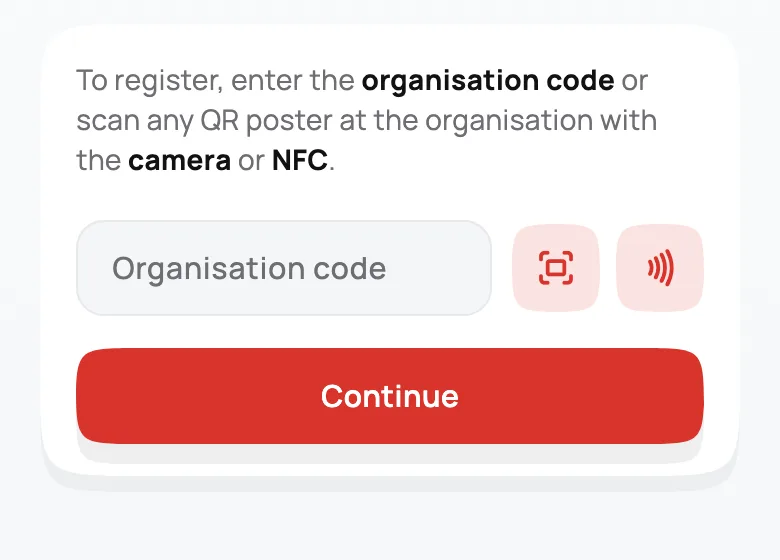
The Add organization card. The NFC button shows only on devices with NFC hardware.
- Type your organization's code in Organisation code. Your organization's admin can give it to you.
- Tap Continue.
If the code is not found, "Organisation not found." appears; check the code and try again.
The card sits in the middle of the screen. While the keyboard is open, the legal links at the bottom hide and Continue stays visible Requires: EnaFeedback Mobile 1.10.0.
Once the organization is added, the app opens in visitor mode.
Switching organizations
A device can hold several organizations. Open the organization list in two ways:
- Tap the organization name in the home header.
- Tap Settings → Organisation and language → Organisation.
The Organisation list marks the current organization with an Active organisation badge. From here you can:
- Tap another organization to switch to it.
- Use Add organisation to add a new one by code, QR or NFC.
- Use Remove to delete an organization from this device, then confirm with Remove. If you remove the last organization, the app returns to Add organisation.
Switching ends your session
The note under the list says: "Switching ends the open session; removing deletes the organisation from this device." If a staff or admin session is open, you need to sign in again after switching.
If you scan another organization's QR code or NFC tag as a visitor or staff member, the app opens Organisation will change: if you continue, the session in the current organization closes and the new organization opens as a visitor.
Signing in as staff
Open the sign-in choice
Tap Sign in in the home header and choose Personnel sign-in.
Enter your personnel code
On Enter your staff code, type or paste your 4-character code (letters or digits). The code is sent automatically at the fourth character. Turkish letters are converted (Ö→0, İ→1, Ş→S, Ğ→G, Ç→C).
Continue in staff mode
If the code is correct, home switches to staff mode and your name and role badge appear in the header.
With a wrong code the boxes shake. After too many attempts, "Too many attempts. Try again in …" appears with a countdown; a code can be locked temporarily.
Getting or recovering your personnel code
Requires: EnaFeedback 2.1.96 · EnaFeedback Mobile 1.1.0- On the personnel sign-in screen, tap Get/forgot personnel code.
- In E-mail or phone, enter the email address or phone number in your personnel record. The app detects which one it is.
- Tap Send personnel code.
If your details match, the personnel code is sent by email or SMS. Wait for the countdown before you request again.
Signing in as admin
- Tap Sign in in the home header and choose Administrator sign-in.
- Your organization's sign-in page opens in a browser window inside the app. Sign in with the user account you use for the admin panel.
- When sign-in completes, the app opens in admin mode.
Admin mode does not scan locations; an open location session closes when an admin signs in. Permissions are read at sign-in: if your role changed in the admin panel, or new screens do not appear after an app update, sign out of the admin session once and sign in again.
Signing out
- Tap your avatar in the home header, or the account row under Settings → Account.
- Tap Sign out.
After signing out, the app returns to visitor mode for the same organization. The organization stays on the device.
Update required screen
Requires: EnaFeedback Mobile 1.8.0Your organization can set a minimum app version. If the installed version is lower, the app shows only the Update required screen with the minimum version the organization needs ("This organisation needs EnaFeedback … or later. Update the app to continue.").
- Update the app opens the mobile app page on www.enafeedback.com with your organization code.
- The app checks when you add an organization, at every launch, and at most every 6 hours when you return to the app. The minimum version comes from the ENA Cloud organization discovery service.
- If the device is offline or the service does not respond, the app is not blocked. The block is kept in memory only; the next launch checks again.
Until the app is in the stores, ask your organization's admin or ENA Innovation support for the current version.
Known limits
- Organization code, QR and NFC only add an organization or scan a location; signing in needs a personnel code or an organization account.
- Only one organization can be active on a device at a time.
- If the organization's identity record is missing, administrator sign-in shows "This organisation has no organization id saved. Add it again." Remove the organization from the list and add it again.
Related articles
- Mobile app overview
- Visitor mode
- Staff mode
- Admin mode
- Security and privacy
- Personnel management
- Roles and permissions
Can't find what you need?
Our support team can help with anything from setup to reporting.
Mobile app overview
The EnaFeedback mobile app for Android and iOS has visitor, staff and admin modes. See the roles, supported devices, version requirements and app version.
Visitor mode
In the EnaFeedback mobile app, visitors scan a location, send cleaning reports and feedback, answer surveys, read announcements and follow My reports.