Visitor screen
What does a visitor see after scanning a QR code? EnaFeedback visitor screen tiles, use without a location, language choice, announcement banner, request tracking and offline page.
- Visitor page
- Mobile app· visitor
This article was verified with an older release. Screen names or steps may differ in the current version.
The visitor screen is the EnaFeedback page that opens in the browser when someone scans a location's QR poster or live display with their phone (/visitor). With no app to install and no account to create, it lets people send a cleaning report, give feedback, take a survey and read content pages. The same actions exist in the visitor mode of the EnaFeedback mobile app; the differences are noted below.
This article describes what the visitor sees. You configure the modules behind the tiles in the admin panel.
Required role, permission and version
- Visitors need no account or role. Scanning a QR code is enough.
- The tiles are configured by the Owner and Administrator (module settings), the Survey manager (surveys) and the Page manager (content pages).
- The announcement banner requires at least EnaFeedback 2.2.0.
The screen with a location
When a QR code is scanned, the server opens a location session and the location name appears at the top. The Quick actions section shows the modules open at this location, in this order:
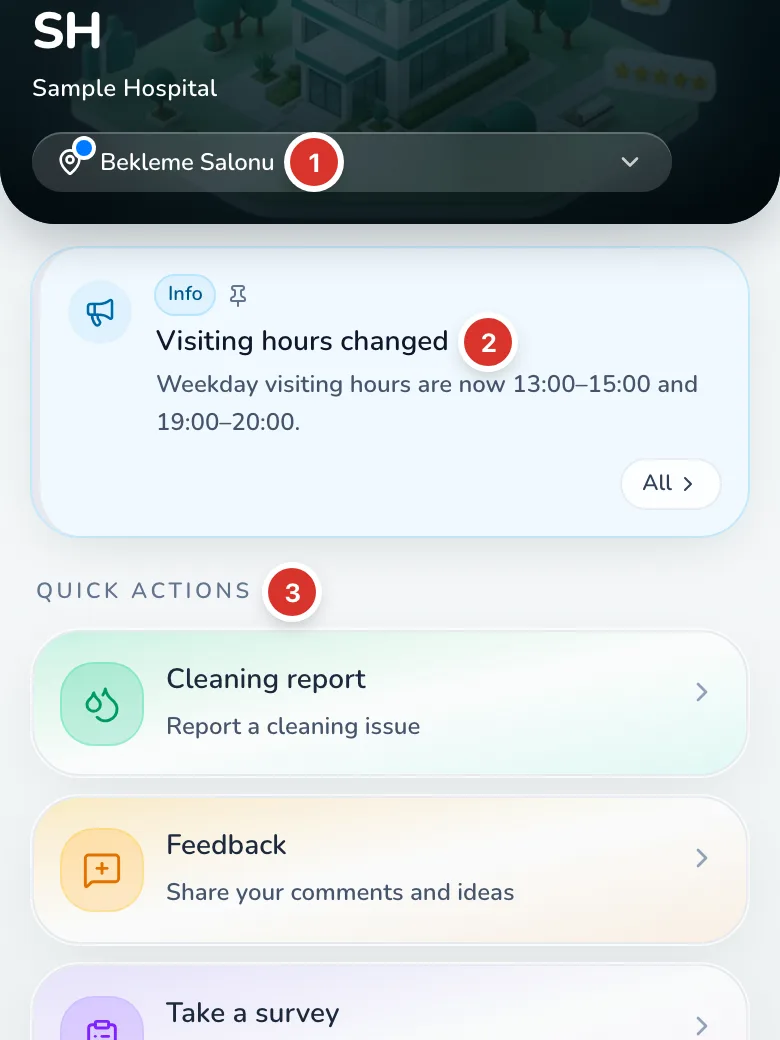
The visitor screen (sample organization and test data)
- The scanned location
- The location's announcement
- Quick actions: Cleaning report, Feedback, Take a survey
| Tile | Description | Shown when |
|---|---|---|
| Cleaning report | Report a cleaning issue | The hygiene report module is on for this location |
| Feedback | Share your comments and ideas | The visitor feedback module is on for this location |
| Take a survey | Share your views by joining available surveys. | At least one published visitor survey is available here |
If there is exactly one survey, the tile shows the survey's name instead of Take a survey and opens it directly. Tile names are fixed; the title and subtitle you write for a module appear on the form page.
Below the quick actions is the Pages section. Each content page appears as a round icon; external link pages open their target address directly.
To hide a module at certain locations, exclude those locations on the module's Visibility tab.
How long a location session lasts
| Rule | Duration |
|---|---|
| Maximum session length (from the accepted scan) | 30 minutes |
| Ends early after time in the background or without activity | 15 minutes |
| Closing warning | Last 2 minutes |
The location card at the top shows the session state: Location session open, Location session closing, Needs a fresh scan, or Verified location if the session was opened by a live display or an NFC tag. When the session ends, the visitor sees Your location session has ended. Scan a QR code to continue. and has to scan the code again.
The screen without a location
If a visitor opens /visitor without scanning, the header shows No location selected — scan QR.
- Cleaning report does not appear without a location.
- Feedback, surveys and content pages appear only if you turned on Show on the home page for them in the admin panel. A note then reads Scan a QR code to open cleaning and other location tasks.
- If there is nothing to show, the screen shows a Scan a QR code card.
QR scan errors
| Title | When |
|---|---|
| Location not found | The code is not defined or is invalid |
| Location is inactive | The location has been deactivated |
| Service temporarily unavailable | A location session cannot be opened right now |
| Wrong organization | The code belongs to another organization |
Language choice
Visitors change the language with the globe button in the footer (Choose language). The options are the languages your organization has turned on from Turkish, English, German and Arabic; if only one language is on, the menu does not appear. Arabic is shown right to left.
The choice is stored in the browser for one year. On a first visit, the browser language is used, or the organization language if that one is not turned on. You manage visitor languages under System settings → Regional settings; see Languages and accessibility.
Announcement banner
Requires: EnaFeedback 2.2.0While a location session is open, valid announcements marked for visitors that cover this location appear at the very top:
- If there is an Urgent or Important announcement, or a pinned one, the top one appears as a colored banner. If there are more, it says +N more announcements.
- Otherwise a single Announcements row shows the first announcement's title.
- All opens every announcement in a bottom sheet.
Visitors cannot dismiss the banner; an announcement disappears when its visibility period ends or it is taken down. The banner does not appear without a location. Announcements are sent from the Message center: Visitor announcements.
Request tracking
After sending feedback, the visitor sees a Request code on the success screen. The code starts with "FB" followed by 6 characters. Cleaning reports do not get a request code.
Open request tracking
Tap Track request in the footer of the visitor screen (/visitor/track).
Enter the code
Type the request code in the FBXXXXXX format and tap Search.
Read the status
The screen shows the subject and status: New, In progress or Closed. The closing result is not shown to the visitor.
Offline page and adding to the home screen
- If the connection drops, the browser shows a cached copy of a page opened before, or the Offline page: "No connection. You can return to the visitor app when you are back online." Try again returns to the visitor screen. Forms cannot be sent while offline.
- Visitors can add the visitor screen to their phone's home screen with Add to home screen. They can postpone the suggestion with Don't show for 14 days.
Visitor mode in the mobile app
Known limits
- A cleaning report needs a location session.
- The announcement banner appears only while a location session is open and cannot be dismissed.
- Request tracking works only for feedback; cleaning reports have no code.
- The offline page does not send forms; sending needs a connection.
Related articles
- Visitor feedback
- Hygiene report
- Surveys
- Content pages
- Media attachments
- QR codes and posters
- Visitor mode
Can't find what you need?
Our support team can help with anything from setup to reporting.
NFC batch setup
Use Batch setup in the EnaFeedback mobile app to write many NFC tags in a row, and learn about counters, conflict prompts, the offline sync queue and the limits.
Visitor feedback
Visitors send feedback by QR code without an account. Categories and automatic priority, media attachments, contact details, consent text and request tracking.